

Upgrading the firmware of a 5hp VFD (Variable Frequency Drive) with single-phase input is a crucial process that can enhance the performance, functionality, and reliability of the drive. As a supplier of 5hp VFD Single Phase Input, I understand the importance of providing clear guidance on this topic. In this blog post, I will walk you through the steps involved in upgrading the firmware of a 5hp VFD single-phase input, offering valuable insights and tips along the way.
Understanding the Importance of Firmware Upgrades
Firmware is the software that runs on the VFD, controlling its operation and functionality. Just like any other software, firmware can be updated to fix bugs, improve performance, and add new features. Upgrading the firmware of your 5hp VFD single-phase input can provide several benefits, including:
- Enhanced Performance: Newer firmware versions often include optimizations that can improve the drive's efficiency, speed control, and torque performance.
- Increased Functionality: Firmware upgrades can add new features and capabilities to the VFD, such as advanced motor control algorithms, communication protocols, and safety functions.
- Improved Reliability: Updating the firmware can fix known bugs and issues, reducing the risk of system failures and downtime.
- Compatibility: As technology evolves, newer motors and equipment may require the latest firmware to ensure compatibility and optimal performance.
Preparing for the Firmware Upgrade
Before you begin the firmware upgrade process, it is important to take the following steps to ensure a smooth and successful upgrade:

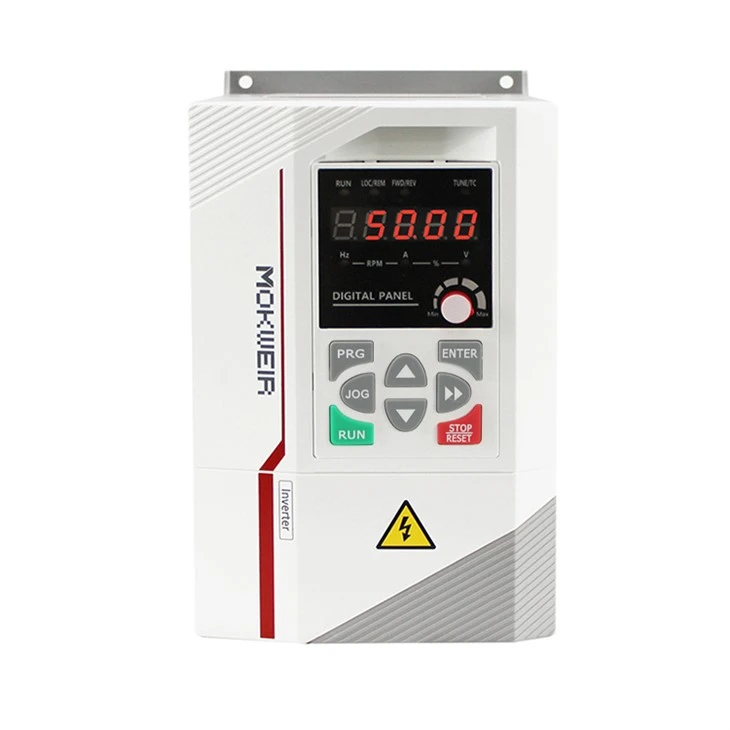
- Check the VFD Model and Firmware Version: Determine the model number and current firmware version of your 5hp VFD single-phase input. This information can usually be found on the drive's display or in the user manual.
- Download the Latest Firmware: Visit the manufacturer's website and download the latest firmware version for your specific VFD model. Make sure to download the correct firmware file, as using the wrong version can cause damage to the drive.
- Backup the Existing Configuration: Before upgrading the firmware, it is recommended to backup the existing configuration settings of the VFD. This will allow you to restore the settings in case of any issues during the upgrade process.
- Gather the Necessary Tools: You will need a computer with a USB port, a USB cable, and the appropriate software provided by the manufacturer to perform the firmware upgrade. Make sure your computer meets the system requirements specified by the manufacturer.
- Read the User Manual: Carefully read the user manual and firmware upgrade instructions provided by the manufacturer. Familiarize yourself with the upgrade process and any specific precautions or requirements.
Performing the Firmware Upgrade
Once you have completed the preparation steps, you can proceed with the firmware upgrade process. The following steps provide a general overview of the upgrade process, but the specific steps may vary depending on the VFD model and manufacturer:
- Power Off the VFD: Before connecting the VFD to the computer, make sure to power off the drive and disconnect it from the power source. This will prevent any electrical hazards and ensure the safety of the upgrade process.
- Connect the VFD to the Computer: Use the USB cable to connect the VFD to the computer. Make sure the connection is secure and that the VFD is recognized by the computer.
- Launch the Firmware Upgrade Software: Open the firmware upgrade software provided by the manufacturer on your computer. Follow the on-screen instructions to select the correct firmware file and start the upgrade process.
- Monitor the Upgrade Process: The firmware upgrade process may take several minutes to complete. During this time, monitor the progress of the upgrade on the computer screen. Do not interrupt the process or disconnect the VFD from the computer until the upgrade is finished.
- Verify the Firmware Upgrade: Once the upgrade is complete, the software will prompt you to verify the new firmware version. Check the VFD's display or use the software to confirm that the new firmware version has been successfully installed.
- Restore the Configuration Settings: If you backed up the existing configuration settings before the upgrade, use the software to restore the settings to the VFD. This will ensure that the drive is configured correctly and ready to use.
Troubleshooting and Tips
In some cases, you may encounter issues during the firmware upgrade process. Here are some common problems and solutions:
- Connection Issues: If the VFD is not recognized by the computer, check the USB cable connection and make sure the VFD is powered on. You may also need to install the appropriate drivers on your computer.
- Upgrade Failure: If the firmware upgrade fails, check the firmware file to make sure it is the correct version for your VFD model. You may also need to try the upgrade process again or contact the manufacturer for support.
- Configuration Errors: If the VFD does not operate correctly after the upgrade, check the configuration settings to make sure they are correct. You may need to restore the backup settings or reconfigure the drive.
Here are some additional tips to ensure a successful firmware upgrade:
- Use a Stable Power Supply: Make sure the VFD is connected to a stable power supply during the upgrade process to prevent power interruptions.
- Avoid Interrupting the Process: Do not interrupt the firmware upgrade process once it has started. This can cause damage to the drive and result in a failed upgrade.
- Keep the Computer and VFD Cool: The firmware upgrade process can generate heat, so make sure the computer and VFD are well-ventilated and not overheating.
- Test the VFD After the Upgrade: After the firmware upgrade is complete, test the VFD to make sure it is operating correctly. Check the motor speed, torque, and other parameters to ensure optimal performance.
Conclusion
Upgrading the firmware of a 5hp VFD single-phase input is a relatively straightforward process that can provide significant benefits in terms of performance, functionality, and reliability. By following the steps outlined in this blog post and taking the necessary precautions, you can ensure a smooth and successful firmware upgrade.
If you have any questions or need further assistance with upgrading the firmware of your 5hp VFD single-phase input, please feel free to contact us. We are a leading supplier of 3 Phase Variable Frequency Drive, Frequency Converter 50hz To 60hz 3 Phase, and 3 Phase Frequency Drive, and our team of experts is always ready to help you with your VFD needs. Whether you are looking to upgrade your existing drive or purchase a new one, we can provide you with the high-quality products and professional support you deserve. Contact us today to learn more about our products and services and to discuss your specific requirements.
References
- Manufacturer's User Manual
- Manufacturer's Firmware Upgrade Instructions